





How to Migrate FileMaker Data to a New Server
How to migrate FileMaker data to a new server without broken schedules, stale certificates, or a weekend of avoidable cleanup.
If you need to migrate FileMaker data to a new server, the dangerous part is usually not copying the file. It is everything around the copy: what happens to live data, what happens to schedules, what happens to certificates, what happens to user connections, and how quickly you can recover if the cutover goes sideways.
That is why a good FileMaker server migration plan is less about heroics and more about choosing the right migration pattern before you touch production.
How to migrate FileMaker data to a new server: first pick the right kind of move
People say "server migration" as if it were one job, but it is usually one of three different jobs:
- Lift and shift — move the same hosted files to a new machine with minimal schema change.
- Schema refresh with existing production data — bring structure from development into a live file while preserving records.
- Production-to-production cutover — move users, files, schedules, SSL, and integrations to a different server as one coordinated event.
Those are not interchangeable.
If you treat a schema refresh like a simple file copy, you risk overwriting production data. If you treat a full cutover like a single-file migration, you miss the surrounding dependencies that make the new environment actually usable.
Before doing anything else, write down:
- which files are moving
- whether production data must be preserved
- whether the new server name, IP, or certificate will change
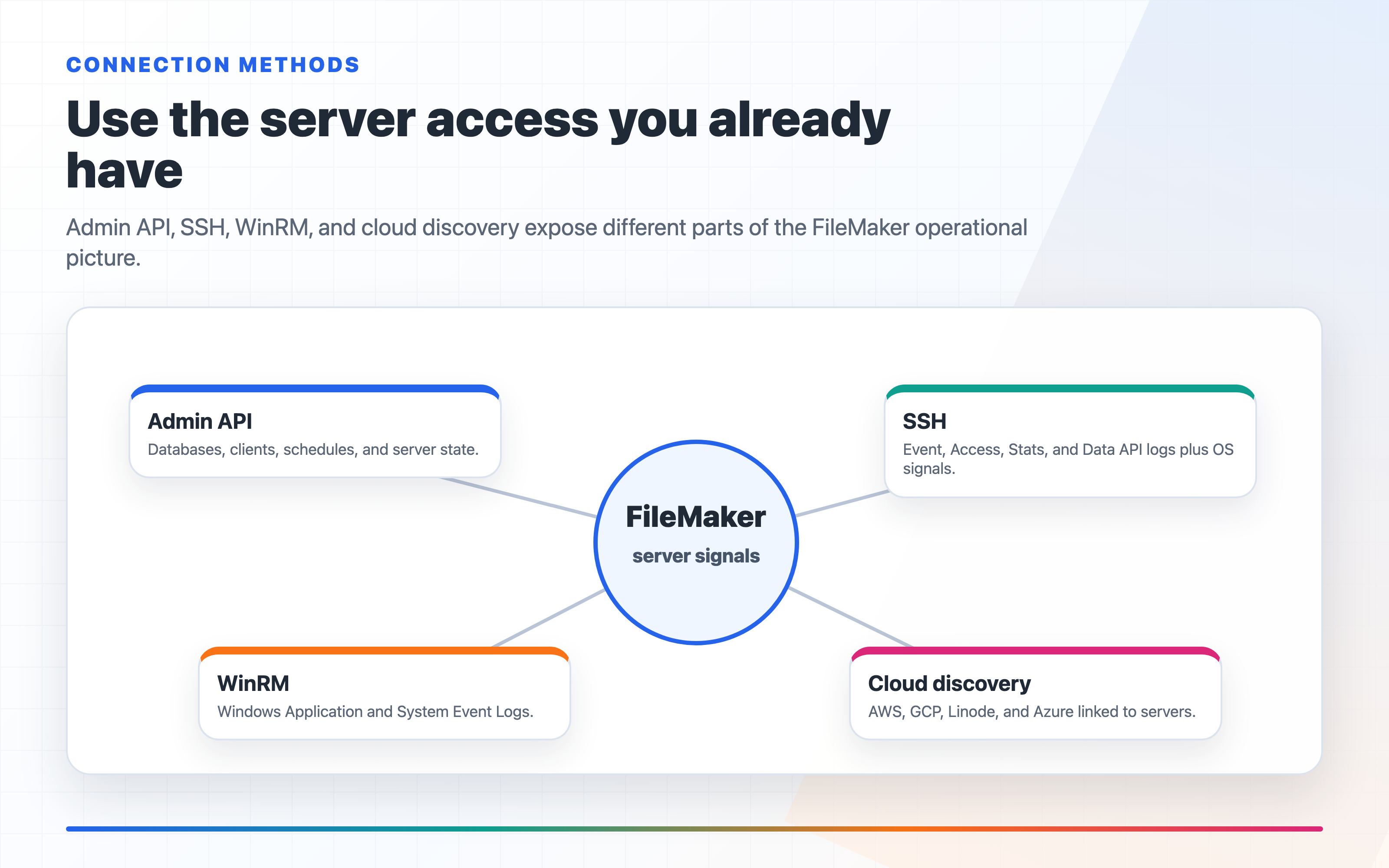
- which schedules, scripts, OData/Data API consumers, or external integrations depend on the current host
- what your rollback point is
If you cannot answer those clearly, you are not ready to cut over.
Preserve data separately from schema
This is the mistake that causes the worst weekend.
A lot of FileMaker migrations are really schema migrations with live data attached. You are not just moving a file from Server A to Server B. You are trying to bring over layout, script, field, table, or custom function changes without losing the records already in production.
That means you need to decide whether the target should receive:
- the exact source file, including its data
- the source schema applied onto the target's current data
- a backup restored in full, replacing what is already on the destination
Those choices have different risk profiles.
If the production file contains the real data you must keep, the safest pattern is usually to preserve the target data and move only the schema changes onto it. If the goal is a true environment refresh, then a full replacement from backup may be correct. The point is to choose intentionally instead of letting the migration method choose for you.
Make a dependency checklist before cutover
The file itself is rarely the only thing that matters.
When moving a FileMaker solution to a new server, check these before you schedule the cutover:
- Hosted file names — are they identical on the destination?
- Schedules — backups, server-side scripts, and verify jobs
- SSL — existing certificate, renewal method, intermediate chain, expiry date
- Admin API / Data API / OData / WebDirect — which services must be enabled on day one
- External integrations — webhooks, Data API clients, ODBC/JDBC, BI tools, custom app API usage
- DNS and hostnames — what clients and integrations actually point to
- User connection patterns — when active usage is lowest
- Rollback assets — known-good backup, original host, and enough time to reverse direction
This is where many migrations fail. The database opens on the new machine, but scheduled scripts are missing, the certificate is wrong, the OData consumer cannot connect, or WebDirect is disabled. From the user's perspective, that still counts as downtime.
Plan the cutover as an operations event, not a copy command
A safer migration window usually looks like this:
- Validate the target server first — service health, disk, SSL, API access, and admin credentials.
- Take a fresh backup of the production source right before the move.
- Pause or drain activity so you know where live writes stop.
- Run the migration method you chose — full replacement, schema-preserving move, or restore.
- Verify the reopened file on the destination.
- Test the surrounding surfaces — schedules, API access, OData, WebDirect, integrations.
- Keep rollback close until real-user validation is complete.
What matters here is not only whether the file opens. It is whether the new environment behaves like the old one where it should, and better where it must.
Do not skip rollback planning
Rollback is not "we still have backups somewhere."
A usable rollback plan answers:
- which backup or source copy becomes the rollback anchor
- how long it takes to restore it
- whether DNS or client connection strings need to flip back
- whether users can reconnect immediately after rollback
- whether any writes on the new server would be lost if you roll back
If you cannot reverse the move quickly, the migration is riskier than it looks.
This is also why copyable logs and archived pre-restore files matter. When a reopen fails or the target does not behave as expected, you need a fast path back to the known-good state, not a reconstruction project built from memory.
Test the services around the file, not just the file
One common post-migration failure is assuming the job is done once the file is hosted.
You still need to check:
- can admins log in and manage the server normally?
- do schedules run?
- is Data API live if the app depends on it?
- is OData live if reporting or external tools depend on it?
- does WebDirect respond if users need it?
- do automation hooks, BI tools, or integrations still point at the correct host?
For production migrations, I would rather spend an extra 20 minutes validating the full edge of the system than spend the next 4 hours explaining why "the migration succeeded" but everything around it quietly broke.
Watch the server after cutover
The first hour after migration is part of the migration.
Watch for:
- repeated disconnects
- backup failures
- access log noise
- component failures
- memory or disk spikes
- integration errors from API clients or automations
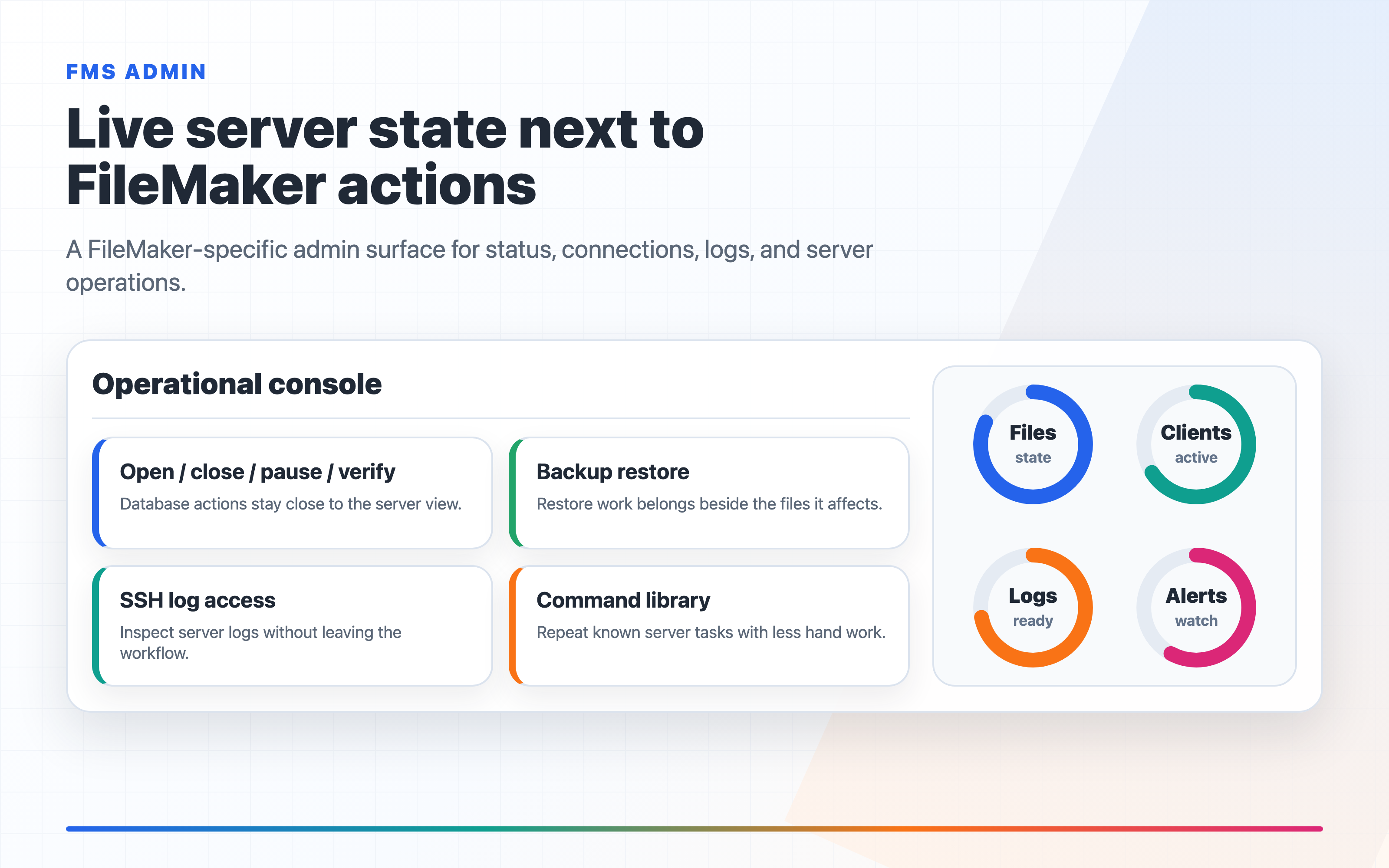
This is where a dashboard, alerts, and log access become part of migration quality, not just general monitoring. If something starts failing only after the cutover, you want to see it before users start forwarding screenshots.
A practical recommendation
If you need to migrate FileMaker data to a new server, avoid thinking in terms of "copy the file and hope for the best." Treat it as a structured cutover:
- choose whether you are moving data, schema, or both
- inventory the dependencies around the hosted file
- define rollback before touching production
- validate the surrounding services after the move
- watch the first post-cutover window closely
That sounds slower, but it is usually the faster route overall because it removes the avoidable rework.
What is new in FM Dojo related to this
If this kind of migration work is part of your week, a few recent FM Dojo updates are directly relevant.
Claude is now the main AI engine in FM Dojo, so the default assistant you use for migration planning, validation questions, and operational troubleshooting now starts from the Claude side unless you explicitly choose a GPT model in AI Preferences.
Snapshots now keep deploy history with diffs and revert so you can review exactly what changed and stage an undo more safely when a push needs to be backed out.
FMS Admin now supports scheduled multi-server update jobs and safer restore recovery, including clearer rollback points and archived restore state when a reopen fails.
FMS Admin can now toggle OData from the dashboard alongside Data API and WebDirect, which makes post-migration service validation faster when external reporting or integrations depend on it.